
Introducing Captioner: Accurate AI Subtitles and Browser Editing for Videos
Captioner is an AI subtitle generator and editor — upload, edit in the browser, translate, and export SRT/VTT or burned-in captions in 98+ languages.
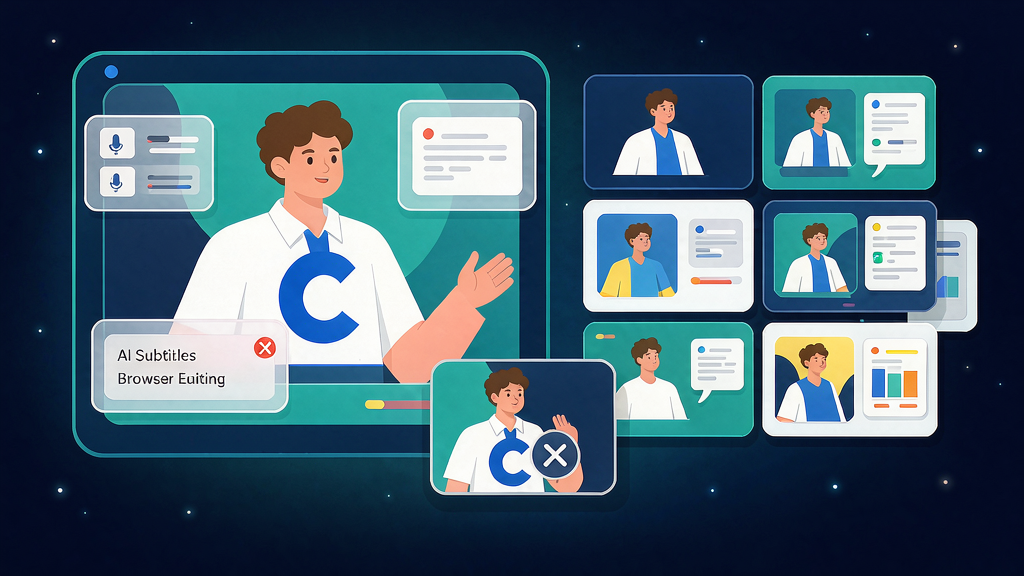
Introducing Captioner: Accurate AI Subtitles and Browser Editing for Videos
Captions are table stakes, but inaccurate timestamps burn editing time. Captioner is an AI subtitle generator and editor built for video — upload, edit in the browser, translate, and export SRT/VTT or burned-in captions.
Captioner focuses on accuracy and a smooth subtitle workflow so creators spend less time tweaking and more time publishing.
What Captioner does
Subtitle generation and editing in the browser:
- High-accuracy transcription — optimized for video subtitles (98%+ claimed accuracy)
- 98+ languages — generate and translate subtitles with one click
- Precise timestamps — word-level timing for finer control
- Browser subtitle editor — edit captions without leaving the page
- Import and align transcripts — bring an existing script and sync it to the video
- Export options — SRT/VTT files or download video with open/closed captions
- Longer clips supported — up to ~2 hours per video on supported plans
Explore:
Who it is for
Creators, educators, and teams who need reliable captions and translations for YouTube, courses, and social video — especially when subtitle accuracy matters more than viral caption animations.
Where it fits in a content stack
Captioner owns video → accurate captions/subtitles → export. Animated short-form styles and full packaging tools sit nearby; Captioner is the accessibility and subtitle layer.
Why it matters now
Mute autoplay and accessibility rules make captions non-optional. Tools that prioritize alignment and export formats reduce rework before publish.
How creators typically use Captioner
An educator uploads a lesson, reviews word-level timestamps, exports SRT for the LMS, and burns captions for social cuts. A YouTuber translates one master transcript into a second language with a single pass.
Quick tips if you try Captioner
- Review proper nouns before publishing.
- Use word-level timestamps when you need tight karaoke-style emphasis later.
- Import a clean script when you already wrote the voiceover.
- Export SRT for platforms that prefer separate tracks; burn-in for Shorts when needed.
- Translate after you approve the source-language pass.
Soft close — related tool
If you also need concept → storyboard → animated or whiteboard explainer / Reels (not talking-avatar presenters), see Scro Explainer. Scro (by NOVAX) is built around approving an AI storyboard before you render — useful when the job is teaching a process, not captioning finished footage. Keep Captioner as the focus of this intro; Scro is only a related option for storyboard-first explainers.